
Prototypes and enclosures
Design an enclosure around its components
Generate editable CAD models for product prototypes and enclosures from text with zCAD. AI. Describe your product’s size, mounting points, and openings. zCAD. AI generates the enclosure as an editable CAD assembly; refine it in zCAD. Online.
01 / The engineering challenge
Why a mesh enclosure model can miss your ports
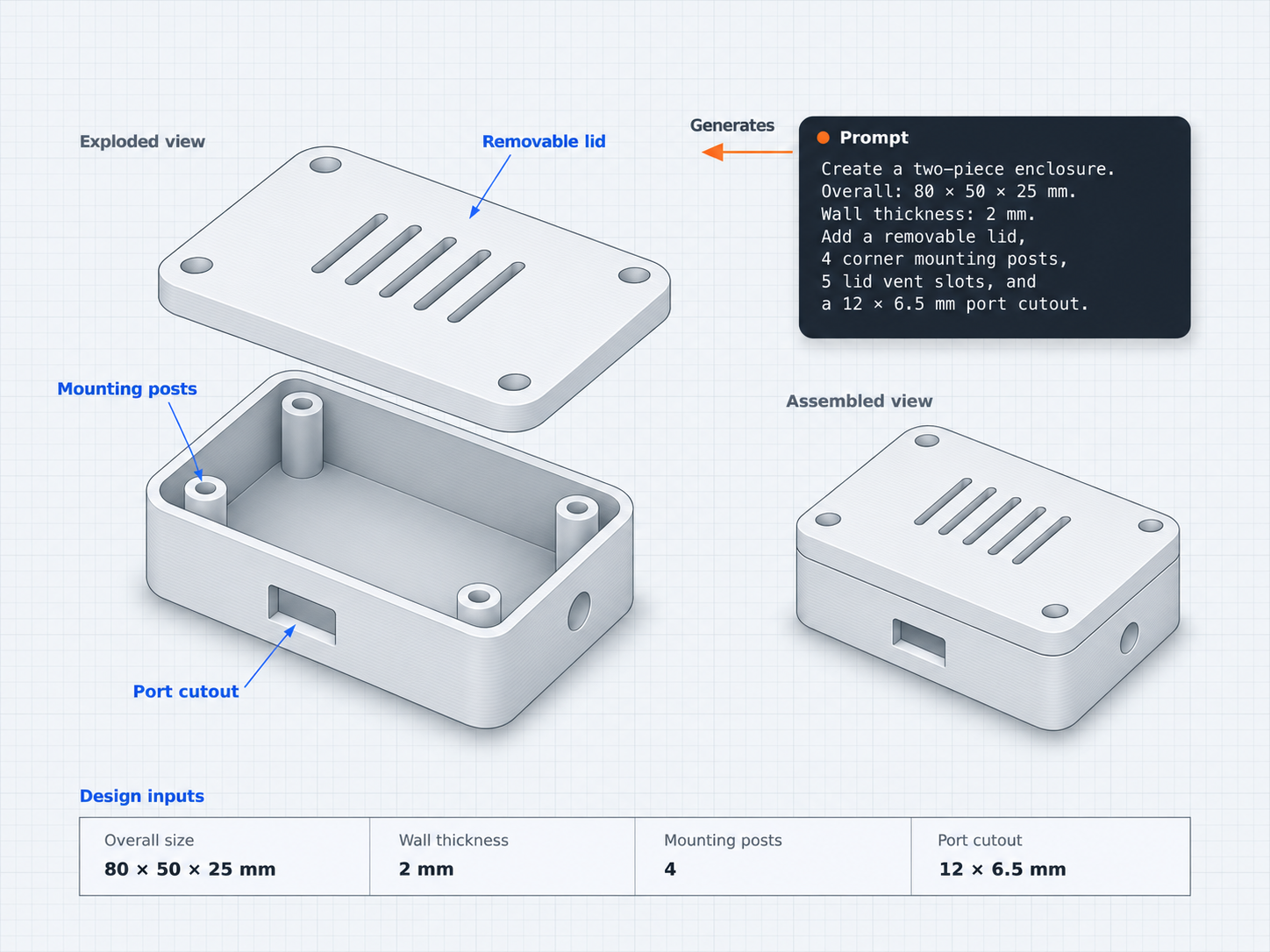
A product casing needs to do more than look good, it must leave room for internal components, provide access to connectors, and bring its separate parts together correctly. For example, a two piece electronics enclosure needs a hollow base to hold the components and a separate lid to cover them. The mountings and connector openings also need to be positioned according to the design requirements.
Mesh model limits
Approximate dimensions
A mesh model can look correct while its measurements differ from the intended design. Even a small difference can affect the space available for the components, or the position of mounting holes.
Changes can be difficult
A mesh does not inherently preserve editable design dimensions. Changing the wall thickness or moving a connector opening may require generating the model again.
Separate parts need to fit together
A casing with a base and lid needs both parts to align properly. A model's appearance alone does not confirm that the lid, mounting parts, and openings meet the design requirements.
02 / Connected capabilities
Snap-fits and mounts built into the enclosure
Use a product description to generate an initial enclosure model, then inspect its dimensions, openings, and separate parts.

Generate an enclosure from a description
Describe the enclosure's dimensions, wall thickness, mounting features and connector openings to generate an initial CAD model with zCAD. AI.
Create separate enclosure parts
Describe components such as hollow base and removable lid as separate parts in the assembly.
Refine dimensions and features
Request design changes in zCAD. AI or edit CAD features directly in zCAD. Online.
Review the enclosure design
Inspect the internal space, mounting positions, connector openings, and fit between separate parts against your requirements.
03 / From requirement to delivery
From an enclosure brief to a CAD model
Describe the enclosure's shape, dimensions, and openings. Generate an initial model with zCAD. AI that can be reviewed and refined in zCAD. Online.
Define
Describe your product, specify the overall dimensions, wall thickness, mounting features and openings needed for your enclosure.
Generate the initial model
Enter the description in zCAD. AI to generate the CAD model.
Review the design
Check the lid, base, posts, and openings against your requirements, and ask for changes if anything is off.
Refine the CAD model
Open the model in zCAD. Online to edit its features and dimensions directly. It keeps its features, dimensions, and mates when you open it there.
04 / PROJECT AT A GLANCE
Project Inputs
- Overall enclosure dimensions
- Wall thickness and lid arrangement
- Connectors, Openings, and their positions
Expected Outputs
- An initial CAD model of the enclosure
- Mounting features and connector openings to inspect
- A model that can be reviewed and refined.
Typical Uses
- Consumer electronics: Develop an enclosure layout with space for internal components and connector openings.
- Smart home: Design a housing for a sensor or controller, with openings for ports and buttons.
- Audio: Design a small speaker enclosure around the driver and cable route.
Before you get started
Frequently Asked Questions
Can I create a product casing from a description?
Yes, describe the casing's purpose, dimensions, mounting points, and required openings. zCAD. AI uses the description to generate a 3D CAD model.
Can I create a casing with multiple parts?
Yes, zCAD. AI can generate assemblies containing multiple parts, including the relationships between them. Review the generated parts and their connections against your requirements.
Can I change the design after generating it?
You can request changes in words in zCAD. AI, such as changing the enclosure height while keeping the mounting-hole pattern. You can also open the model in zCAD. Online to edit its CAD features and dimensions directly.
Can I use the model for 3D printing?
Export STL, 3MF, or OBJ files and open them in your slicer. Before printing, check the dimensions, clearances, material, and geometry for your intended use.
Will the enclosure fit my electronics automatically?
Not necessarily. Measure your components and check the generated enclosure's internal dimensions, mounting positions, and connector openings.
zCAD / Prototypes and Enclosures
Start your enclosure from real dimensions
Have an idea for a product casing? Describe its shape, dimensions, and key features to generate a CAD model you can review and refine.